
I will never forget the sheer, burning embarrassment of a rainy Tuesday morning in October. I was sitting at a crowded communal table, trying to pitch a potential client while frantically flipping between six different browser tabs. In my haste, I knocked over my ceramic mug, sending a wave of lukewarm coffee straight toward my neighbor’s brand-new laptop charger. I was trying to run a complex, multi-window workflow on a single, cramped 13-inch screen, and it was an absolute disaster. That messy, chaotic moment was my wake-up call. I realized that trying to operate a modern business without a proper screen layout is a recipe for stress and public blunders. If you are struggling to stay productive on the go, you do not have to settle for a single tiny screen.
The High-Productivity Multi-Screen Dream in a Shared Space
Today, we are going to solve the ultimate mobile workspace dilemma: how to build a highly functional, compact dual-monitor rig that you can pack up in under sixty seconds. You do not need a massive, heavy desk or a permanent private office to get the screen real estate of a wall-street trader. We will look at the exact lightweight gear, clever cord-management tricks, and spatial boundaries needed to reclaim your workflow velocity. Working in public environments can be incredibly dynamic, but it also means dealing with a lot of external distractions. Many professionals find that having that second screen acts as a physical shield, helping them focus and avoid becoming the loud person in the shared workspace hub. By creating a dedicated, professional visual zone, you signal to those around you that you are deeply locked into your work, which naturally keeps interruptions to a minimum.
Is a portable dual-monitor setup actually worth the extra weight in my backpack?
Let me be completely honest with you: early on, I made the classic rookie mistake of buying a cheap, heavy, USB-powered monitor off an obscure online marketplace. It required three different adapters, flickered constantly, and drained my laptop battery in less than forty-five minutes. I hated carrying it, and it almost made me give up on the concept entirely. But high-quality, modern portable monitors weigh less than a pound and connect with a single USB-C cable. According to a landmark study by the Jon Peddie Research group, utilizing multiple monitors can boost overall workplace productivity by up to 42 percent. When you realize that you can gain nearly half your workday back just by expanding your horizontal screen space, carrying that extra ultra-thin screen in your sleeve becomes a complete no-brainer.
Making Room for Your Screens Without Annoying Your Neighbors
The real challenge of setting up multiple screens in a public lounge isn’t the technology itself—it is the spatial etiquette. You cannot be the person who hogs three entire seats at a communal table with a sprawling mess of cables, stands, and kickstands. That is why choosing the right gear, like vertical clip-on mounts or magnetic side-mounts, is a complete game-changer. It allows you to expand your digital canvas upward or tightly adjacent to your laptop chassis without expanding your physical footprint. This level of physical organization is just as crucial as digital security; keeping your screens compact and angled toward you also helps to keep your startup’s trade secrets safe from casual passersby. Have you ever tried setting up an extra screen in a public workspace, only to pack it away out of frustration or embarrassment? Let me know in the comments below, because I would love to hear about your setup struggles as we dive into the step-by-step assembly guide next.
Step-by-Step Blueprint to Assemble a Dual-Screen Workspace on the Go
Building a high-functioning, double-display workspace in a public lounge is like packing a high-altitude parachute: everything must fold perfectly, deploy quickly, and occupy as little physical volume as possible. When you have a tight space to work with, every inch matters. The goal is to move from a closed backpack to a running dual-monitor terminal in under sixty seconds, without blocking the flow of the room.
Pick the Right Screen Mounting System
The biggest hurdle to a multi-screen workspace is the physical stand. Standard desktop kickstands are table space hogs. Instead, invest in magnetic side-mounts or tension-based clips that secure the secondary panel directly to your laptop bezel. This suspends the screen in mid-air and keeps your footprint strictly limited to your laptop’s actual width. I learned this the hard way during a chaotic product launch when my free-standing secondary screen slid off a polished mahogany table, taking my iced latte down with it. That messy cleanup convinced me that suspension mounts are the only safe way to fly. Using clip-on mounts also helps keep your setup extremely tidy, which is essential if you want to avoid the loud person in the shared workspace hub label by encroaching on your neighbor’s physical space.
Streamline with a Single USB-C Connection
Throw away your HDMI cords and extra power bricks. Your secondary display must run on a single USB-C cable that handles both video signal and power delivery directly from your laptop. This configuration is incredibly efficient and keeps your workspace completely clear of cable clutter. If your screen begins to flicker or cut out, you don’t necessarily have a broken monitor; often, your laptop’s operating system is struggling with power distribution. In these moments, knowing the trick to fixing a flickering projector in under thirty seconds or diagnosing simple cable throughput limits will save you from a public technical meltdown. Always keep one high-bandwidth, braided USB-C cable dedicated solely to your display link. Let’s look at how this tidy physical arrangement fits into a busy workspace layout.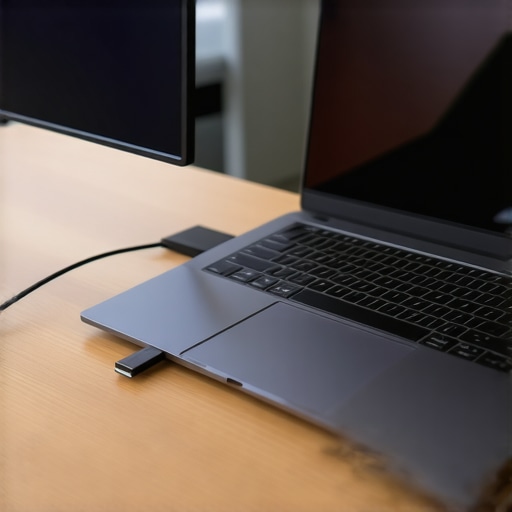
Angle Your Panels for Maximum Digital Privacy
In a crowded lounge, visual privacy is a currency. To protect your data, angle your secondary monitor inward at a sharp 45-degree angle, creating a private visual cockpit. This physical positioning makes it nearly impossible for anyone sitting next to you to read your spreadsheets or documents. This simple layout tactic is a highly effective way to keep your startup’s trade secrets safe without needing to carry heavy plastic privacy filters. It also forces you to sit with better, more ergonomic posture, keeping your neck aligned while keeping wandering eyes off your proprietary build files.
Optimize Your Operating System Display Settings
A physical setup is only as good as its digital alignment. Once your secondary screen is mounted and powered, open your operating system’s display settings and match the virtual screen heights to your physical layout. If you don’t align them, your mouse cursor will constantly get stuck on physical bezels as you try to drag windows across screens. I highly recommend placing your primary communication apps, like Slack or email, on the secondary screen, while keeping your main deep-work window centered on your laptop panel. This physical division helps segment your focus, preventing notifications from derailing your creative flow.
The Myth of the Shared Boardroom: What Most Founders Get Wrong
Many entrepreneurs assume that booking the biggest, flashiest conference room is the ultimate way to impress prospective clients or investors. In my early days, I fell into this exact trap, spending precious credits on a massive twelve-person boardroom for a simple three-person chat. It felt sterile, cold, and honestly, a bit ridiculous. In my experience, a tight, high-energy environment works far better for building genuine rapport. When you isolate a small group in a massive room, the physical distance creates a psychological barrier that stifles spontaneous conversation. Why investors prefer meeting in a high-energy hub over a quiet cafe comes down to the infectious momentum of active environments—not the sterile quiet of a corporate tomb.
Another critical ‘oops’ factor is the physical layout. Many teams automatically default to the standard rectangular table setup, completely unaware that the seating arrangement that kills networking before it starts is the rigid, linear boardroom style. This layout establishes an artificial hierarchy that discourages collaboration and turns your brainstorm into a series of formal presentations. If you are trying to foster true innovation, you need a setup that encourages fluid movement and equal eye contact.
How do you spot a poorly designed meeting room before booking it?
The secret lies in the acoustics and physical comfort, not the fancy smart-screens. According to architectural design studies from the Center for the Built Environment, poor room acoustics are the number-one source of workplace dissatisfaction and cognitive fatigue. Always watch out for rooms with floor-to-ceiling glass walls that lack acoustic paneling or rugs; they turn every conversation into an echoing mess. If your client is straining to hear you over the echo of your own voice, your pitch is doomed before it starts. Instead, look for spaces that prioritize dense, sound-absorbing materials. Have you ever fallen into this trap of booking a room that looked beautiful online but felt like an absolute echo chamber in person? Let me know in the comments below, as I would love to hear your experiences.
Keeping Your Dual-Screen Rig Running in Top Condition
Once you transition to a portable dual-monitor setup, there is no going back to a single cramped screen. However, maintaining high-bandwidth performance requires more than just throwing your equipment into a backpack at the end of the day. Cables fray, ports loosen, and operating systems push updates that can suddenly break your display arrangements. To prevent these frustrating issues, I perform a quick weekly hardware audit. I inspect the USB-C connector pins for lint or bend damage and use compressed air to clean out my laptop’s power delivery ports. If you rely on specialized virtualization software to manage different operating systems across your screens, keeping your tools updated is critical; for example, seeing how Parallels Desktop saved our dev team from the two laptop shuffle taught us that software stability is just as important as physical hardware maintenance.
How do I maintain my multi-screen setup over time?
The secret to longevity is isolating your delicate panels from physical pressure points inside your commuter bag. Never pack your portable monitor in the same sleeve as your heavy power bricks or aluminum laptop chassis. I personally use a semi-rigid EVA hardshell sleeve specifically designed for 15-inch panels, which completely prevents keys or stray pens from cracking the glass. Additionally, treat your high-bandwidth USB-C cables with care. Loop them loosely rather than wrapping them tightly around your hand, which snaps the delicate internal shielding. According to the technical guidelines published by the USB Implementers Forum (USB-IF), cable degradation is the leading cause of power-delivery dropouts and display flickering. If you experience signal loss, swap the cable before assuming your monitor is broken.
As remote setups become more integrated, I predict we will soon see ultra-lightweight, rollable OLED secondary displays that clip magnetically onto your laptop bezels like a simple screen protector. Until those futuristic panels arrive, keeping your current dual-screen setup running smoothly is the ultimate competitive advantage for staying focused. If you want to dive deeper into maximizing your setup’s efficiency while working around others, make sure to explore our checklist on 7 signs you are the loud person in the shared workspace hub to ensure your physical layout remains respectful of those sharing the desk. I highly recommend trying out the 45-degree inward screen tilt during your very next session to see just how much it improves your focus and security.
When I look back at my transition from a cramped single-screen laptop to a dual-monitor setup, I realize that the hardware itself was only half the battle. The physical configuration is just the beginning; the real test is how you manage your workflow and physical presence when surrounded by other professionals.
The Critical Dual-Display Lessons I Learned the Hard Way
- Physical bulk is your worst enemy: If a piece of equipment takes more than two minutes to set up or requires three different cables, you will eventually leave it at home. Convenience always wins over screen real estate.
- Never underestimate the power of a single high-quality cable: Relying on cheap adapters to power your secondary screen is a recipe for intermittent blackouts. If your setup fails mid-presentation, your professionalism takes the hit.
- Your desk footprint is your social reputation: Encroaching even three inches onto your neighbor’s side of a shared table is the fastest way to build friction in a collaborative workspace. Keep your gear tight, vertical, and self-contained.
The Mobile Professional Toolset I Actually Trust
Building an efficient mobile workspace requires curation. I do not recommend buying generic, highly-rated multi-screen attachments from random online marketplaces. Instead, look for established tools that survive daily packing and unpacking. I personally swear by the Moshi USB-C to USB-C Shield Cable because its braided design prevents internal wire breaks, and the Peak Design Everyday Backpack, which has dedicated, padded slots to prevent pressure cracks on thin panels. When it comes to software, I rely on Magnet (for macOS) to instantly snap windows into place. Additionally, knowing how Parallels Desktop saved our dev team from the two laptop shuffle helped us realize that virtual software management is just as vital as the physical screens you carry.
Take the Leap Into Multi-Screen Freedom
Working on the go does not mean you have to compromise your speed, focus, or privacy. Setting up a highly-efficient mobile workstation allows you to bring your best thinking to any environment. Stop struggling with overlapping tabs and take control of your digital canvas. When you are ready to transition your team from isolated home setups to collaborative environments, consider exploring coworking spaces unlock innovation top meeting rooms of 2025 at 1123 am to find the perfect physical match for your new, high-powered setup.
Have you ever tried setting up an extra screen in a public lounge, only to pack it away out of frustration? Let me know about your setup struggles in the comments below!